Additional Features & Controls
Navigating the guided workflow experience
Controls you can use at any point during a run to orient yourself, review the plan, or step away and come back later.
Ultimarii Studio label
The Ultimarii Studio label appears at the top-left of the workflow screen, showing you’re inside the guided workflow experience. When clicked, you will be redirected to the Main UI screen.
Case Files tab
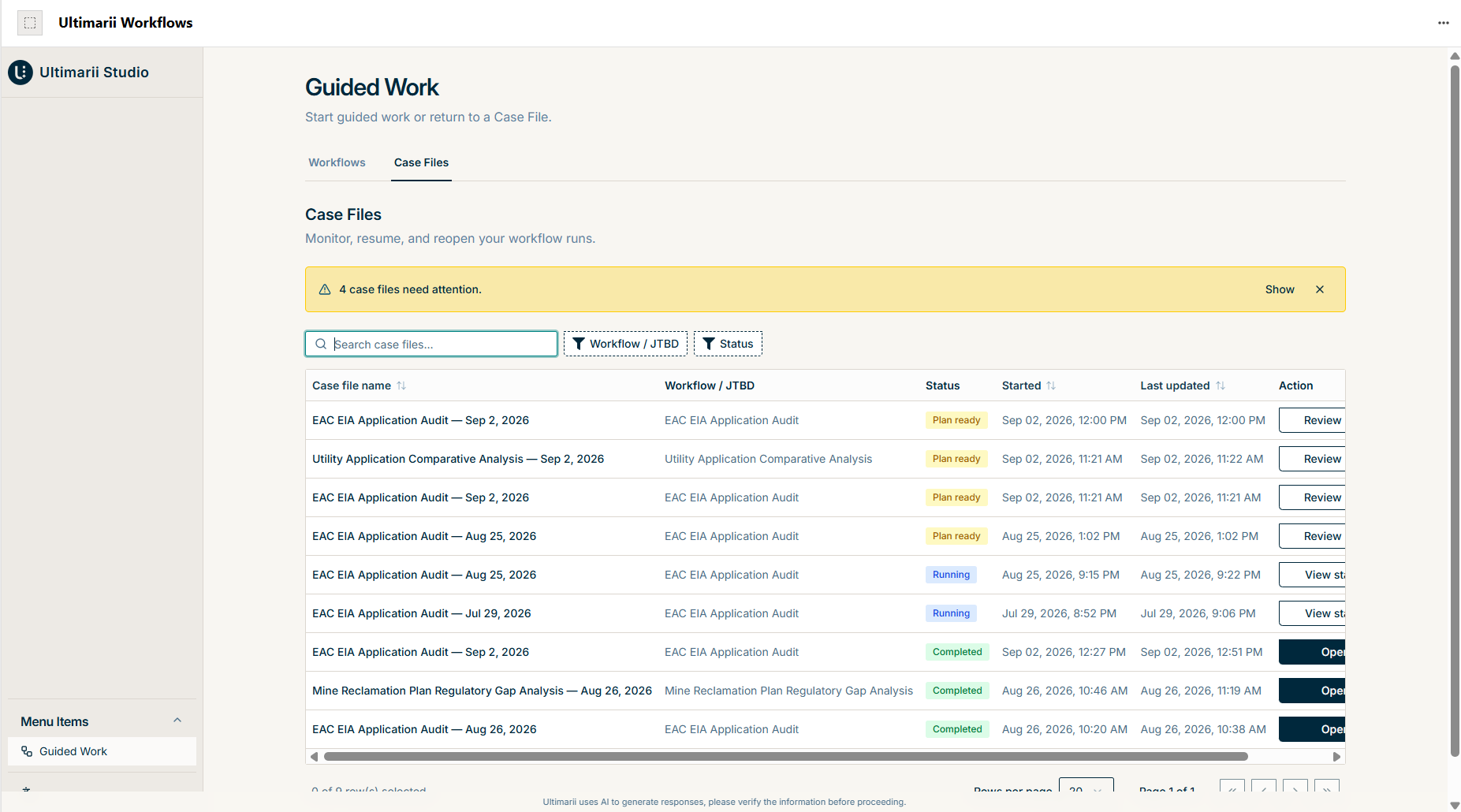
The Case Files tab lets you monitor, resume, and reopen your workflow runs. Case files that need your attention are flagged at the top.
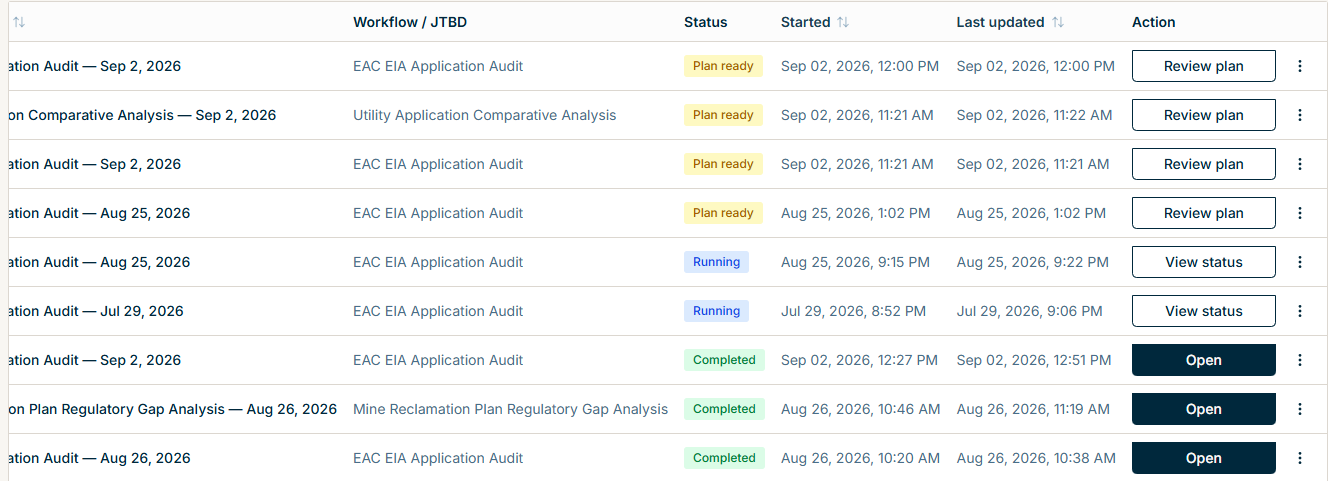
Case file actions
Depending on the case file’s status, you’ll see different actions available — like Review plan, View status, or Open — so you can pick up right where you left off.
Expand workflow map
Click Expand workflow map to view a larger version of the workflow diagram.

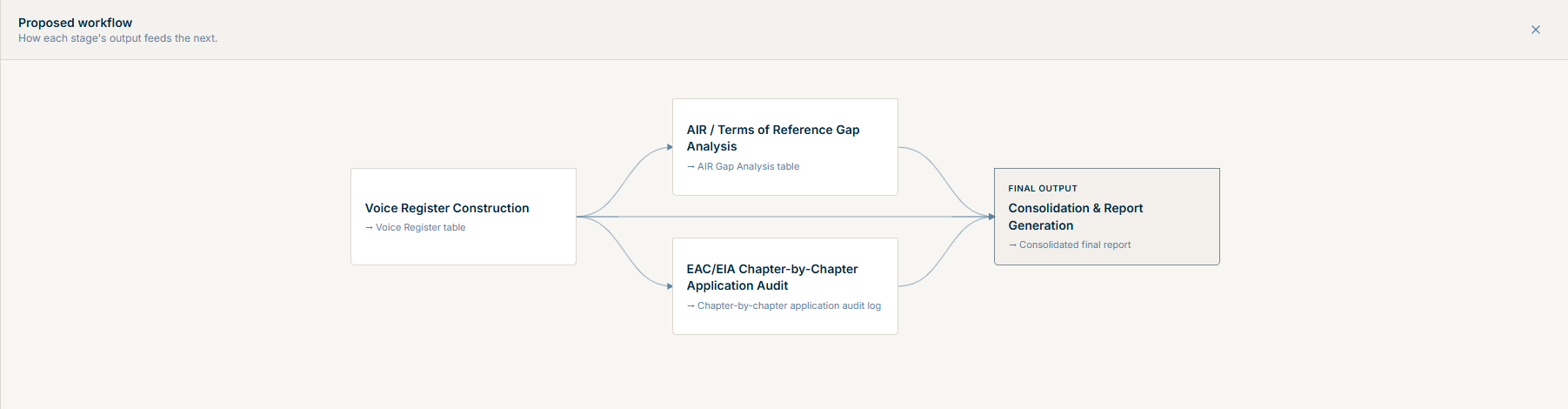
The expanded view
The expanded view shows the full workflow map — how each stage’s output feeds into the next.
Plan again
If the proposed workflow shape doesn’t look right, click Plan again to adjust your context and regenerate the plan.
Back to Case Files
Use Back to Case Files at any point to return to your list of case files without losing progress.
Need help?
For questions, help, or to report objectionable content, contact support@ultimarii.com.